Razorpay
Create payment links and manage payments with Razorpay. In Appbricx, your workflows and server functions call it by name once it is connected.
What you can do
2 actions, each one call from a workflow or a server function. Triggers come from your app: a row changing, a schedule or a webhook.
- Create Payment LinkCreate a payment link
create-payment-link - Custom API CallMake a custom API call to a specific endpoint
custom_api_call
Set it up
About two minutes, once per project or once for the whole workspace.
- Open Integrations in the builder
Backend panel, Integrations tab, then Razorpay. To connect it for every project, use Workspace settings, Integrations.
- Add your credentials
Fill in the fields the provider needs (listed below). They are stored encrypted in the vault.
- Key ID Your Razorpay Key ID
- Key Secret Your Razorpay Key Secret
- Call an action
From a workflow, by integration id and action name. The call answers with success, output and, when it fails, the reason.
Workflow // .workflow.js (native ctx) export async function run(ctx) { const res = await ctx.integrations.invoke("razorpay", "create-payment-link", { "amount": 1, "currency": "<currency>", "customer_contact": "<customer contact>" }); if (!res.success) throw new Error(res.error); ctx.log.info("Razorpay answered", { output: res.output }); }
Templates that use Razorpay
Add one to your app and it arrives wired to Razorpay: connect it and the workflows run.
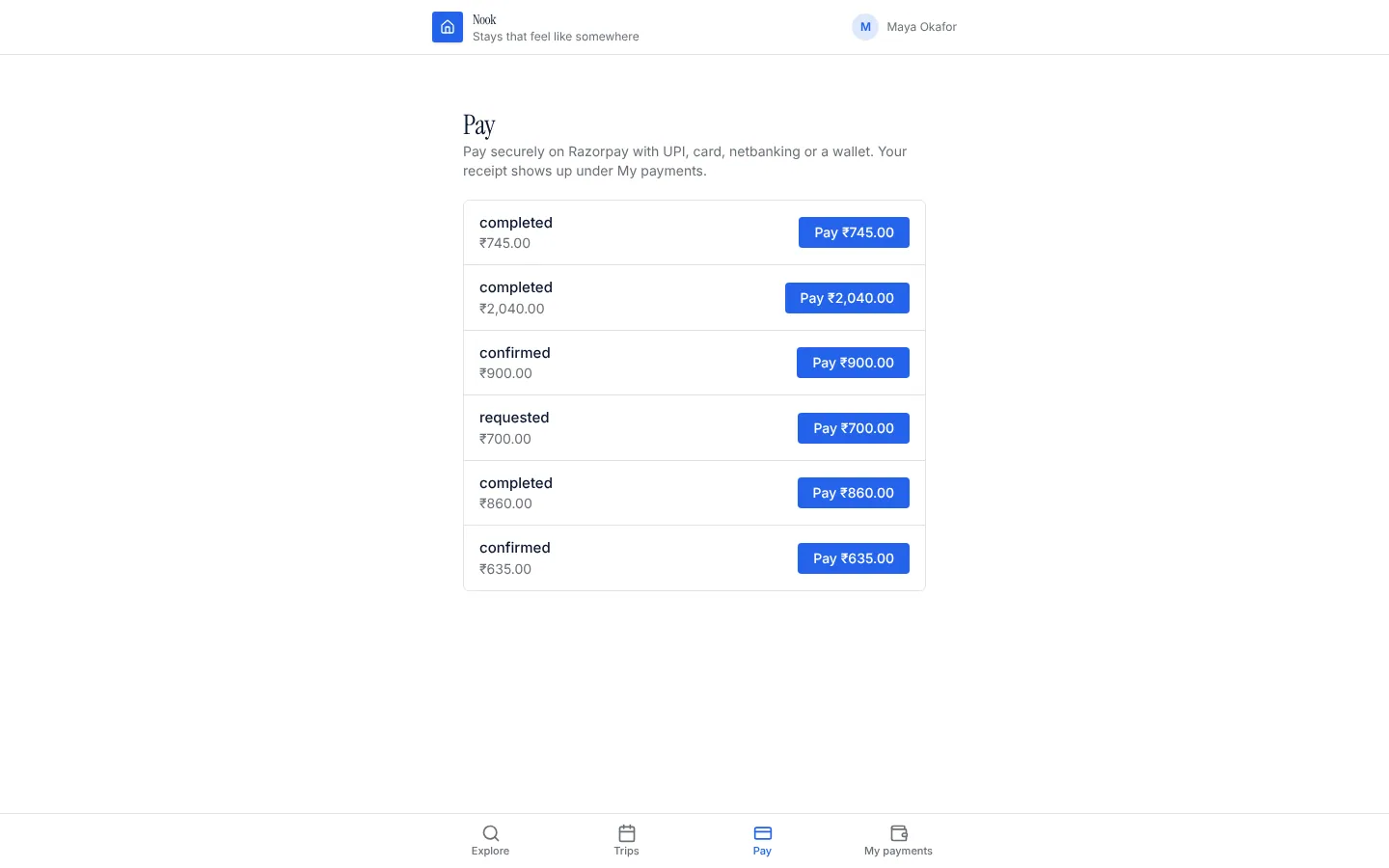
Razorpay payments
Take a payment in INR for any record (a booking, an order, an invoice) through a Razorpay Payment Link: UPI, cards, netbanking and wallets, confirmed by Razorpay's signed webhook.
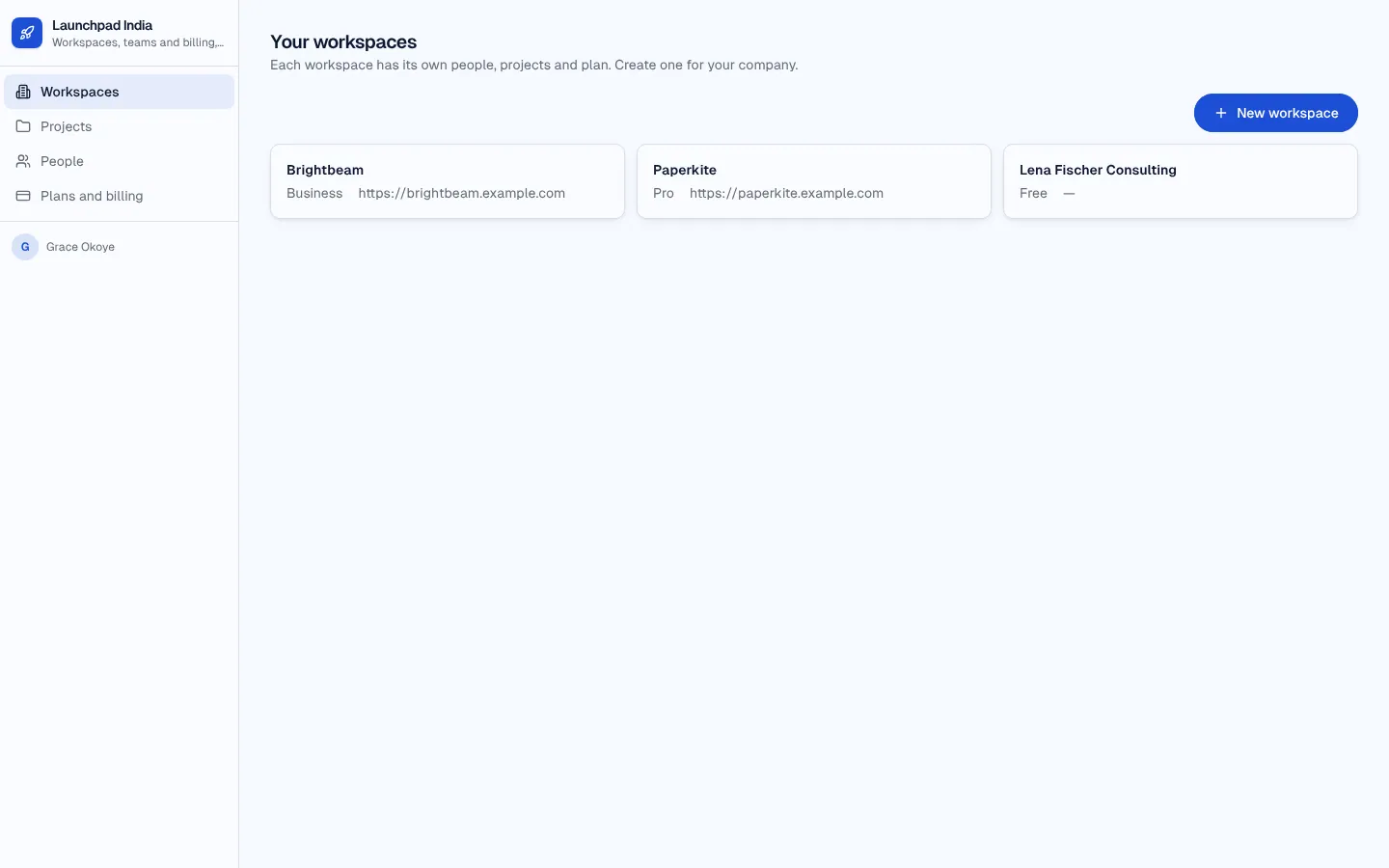
SaaS starter (Razorpay)
B2B SaaS starter for India: landing page, sign-up, workspaces and teams, plan limits and Razorpay subscriptions in INR (UPI AutoPay, cards) confirmed by signed webhooks.
More in Finance and payments
Razorpay and its logo are trademarks of their owner, shown only to identify the service this integration connects to. Their use does not imply endorsement by, or affiliation with, that company.