Wireflow
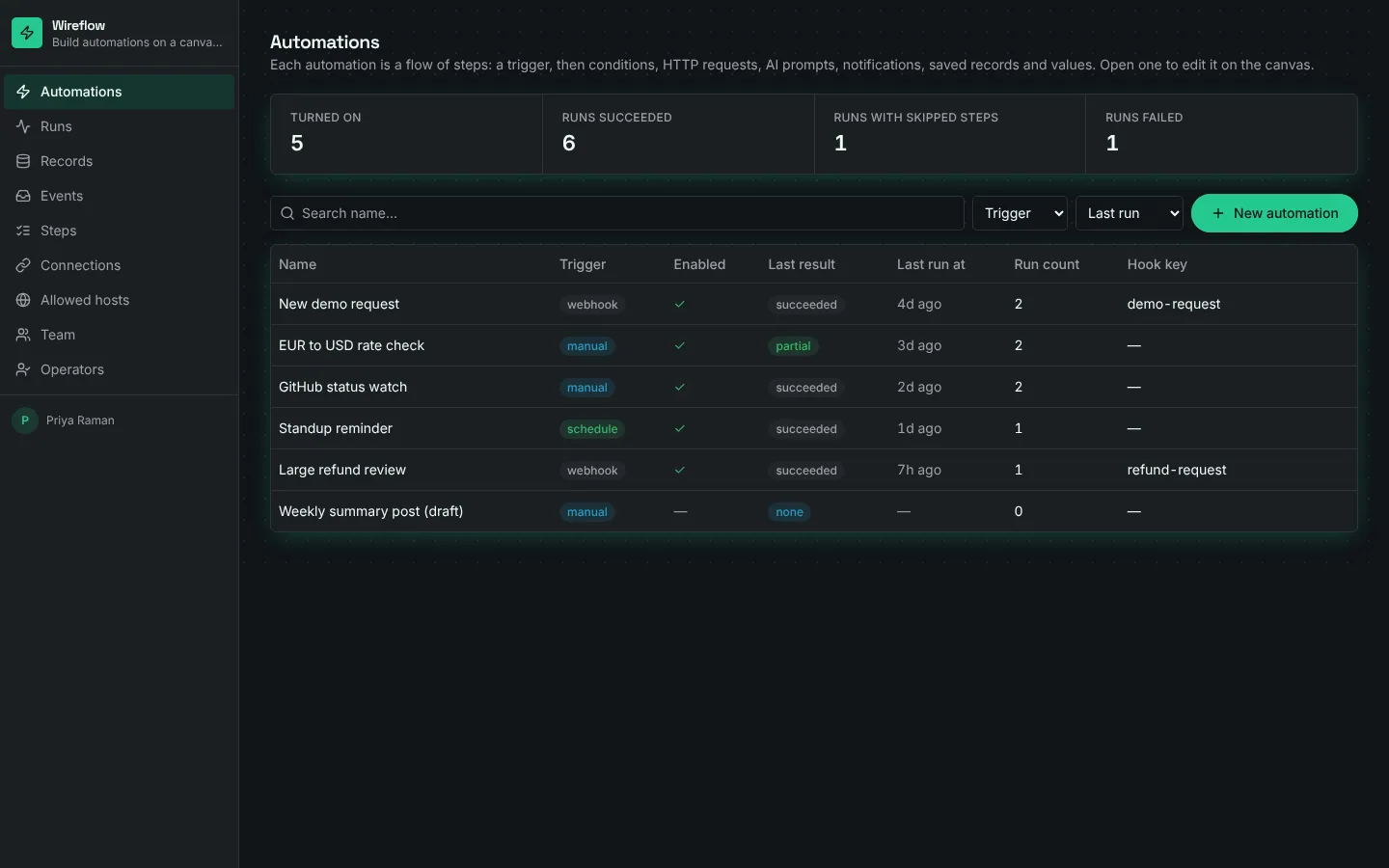
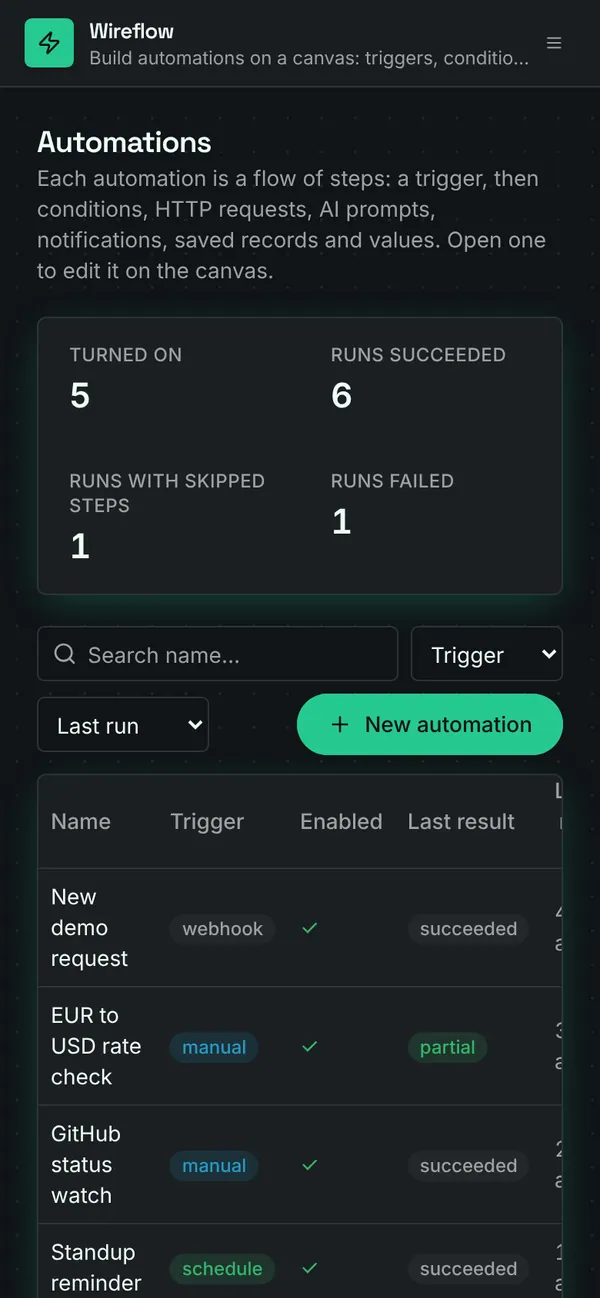
Builders create automations and edit them on a canvas: drag steps, connect them, give conditions a yes and a no branch, and set each step's options (a URL and body, an AI prompt and its fallback, who to notify, what record to save, which value to keep). Run now executes the whole graph in a server function with a test payload, HTTP requests included, but only to hosts on the allowed list. Webhooks, a 15-minute schedule, test events and queued runs go through the same step executor in the background, one step per workflow run. Every run keeps a log line per step with its result, output and timing. Operators run automations, send test events and follow the runs. Without an AI key, Ask AI steps use their fallback text and say so.
Invite-only. Builders design automations and manage allowed hosts. Operators run them, send test events and watch runs.
What's inside
Canvas flow editor: add, drag, connect and configure steps. Seven step kinds: trigger, condition, HTTP request, Ask AI, notify, save record, set value. Run now with a test payload, with each step's result on the canvas. Webhook, schedule and test-event triggers, plus queued background runs. Run history with a log line per step, its output and timing. Allowed hosts list for HTTP steps.
Tables
buildername, emailoperatorname, emailautomationname, description, trigger, hook_key, every_minutes, next_run_at, on_error, enabled, …nodeautomation_id, label, kind, config, on_error, x, yedgeautomation_id, from_node, to_node, branchrunlabel, automation_id, progress, trigger_source, started_at, finished_at, duration_ms, steps, …run_logrun_id, node_id, node_label, seq, status, branch, message, output, …entrytitle, source, data, automation_id, run_idinbound_eventsource, automation_id, hook_key, payload, processed, run_id, outcomeallowed_hosthost, note
Roles
builderBuilder, staffoperatorOperator, staff
Pages
/automationsAutomations (builder)/flowsAutomations (operator)/automations/:idAutomation (builder, operator)/runsRuns (builder, operator)/runs/:idRun (builder, operator)/recordsRecords (builder, operator)/eventsEvents (builder, operator)/stepsSteps (builder)/connectionsConnections (builder)/hostsAllowed hosts (builder, operator)/teamTeam (builder)/operatorsOperators (builder)
Components
FlowCanvasAutomation flow editor: steps (trigger, condition, HTTP, Ask AI, notify, save record, set value) on an SVG canvas, drag to arrange, connect with yes/no branches, edit each step's settings, Run now with a test payload and see each step's result
Rules on every write
automationCheck the trigger settingsnodeStep settings must be JSONedgeThat connection isn't allowedinbound_eventSay which automation this event is forallowed_hostEnter just the host name
How its workflows run
Each one is a server workflow in your project: it runs on its trigger, with retries, and its runs show in the builder's log.
- Run an automation now
When the app calls it:
server function (builder, operator). Then: Look up automation, then Notify, then Create entry, then Update run. - Run the next step of a background run
When a row changes:
run_log created. Then: Look up run, then Notify, then Create entry, then Update run_log, then Look up run_log, then Update run_log, then Create run_log. - Start a queued run
When a row changes:
run created. Then: Update run, then Look up automation, then Create run_log. - Turn an event into a run
When a row changes:
inbound_event created. Then: Look up automation, then Update inbound_event, then Create run. - Receive automation webhooks
When a webhook arrives:
webhook automation-hook. Then: Create inbound_event. - Start scheduled automations
On a schedule:
schedule every 15m over automation. Then: Look up automation, then Update automation, then Create inbound_event. - Record a finished run
When a row changes:
run updated. Then: Look up automation, then Update automation, then Notify.
Set it up
It starts a new project, with its data, roles and sign-in ready.
- Start the project
Use the button above, or ask your coding agent with the Appbricx MCP server connected (quickstart).
- Sign in as each role
The demo logins open each role's home. Change what you like in plain words or in the contract.
- Deploy
When dev looks right, deploy. Production gets a snapshot first, so you can roll back.
Use it with your coding agent
The agent creates the project, builds it and signs in as each role.
Start a new Appbricx project from the Wireflow template (slug "wireflow") with use_template. Call it "My Wireflow", then sign in as each role, verify it and tell me what to change first.{
"tool": "use_template",
"arguments": {
"slug": "wireflow",
"name": "My Wireflow"
}
}appbricx templates use wireflow --name "My Wireflow"Goes well with
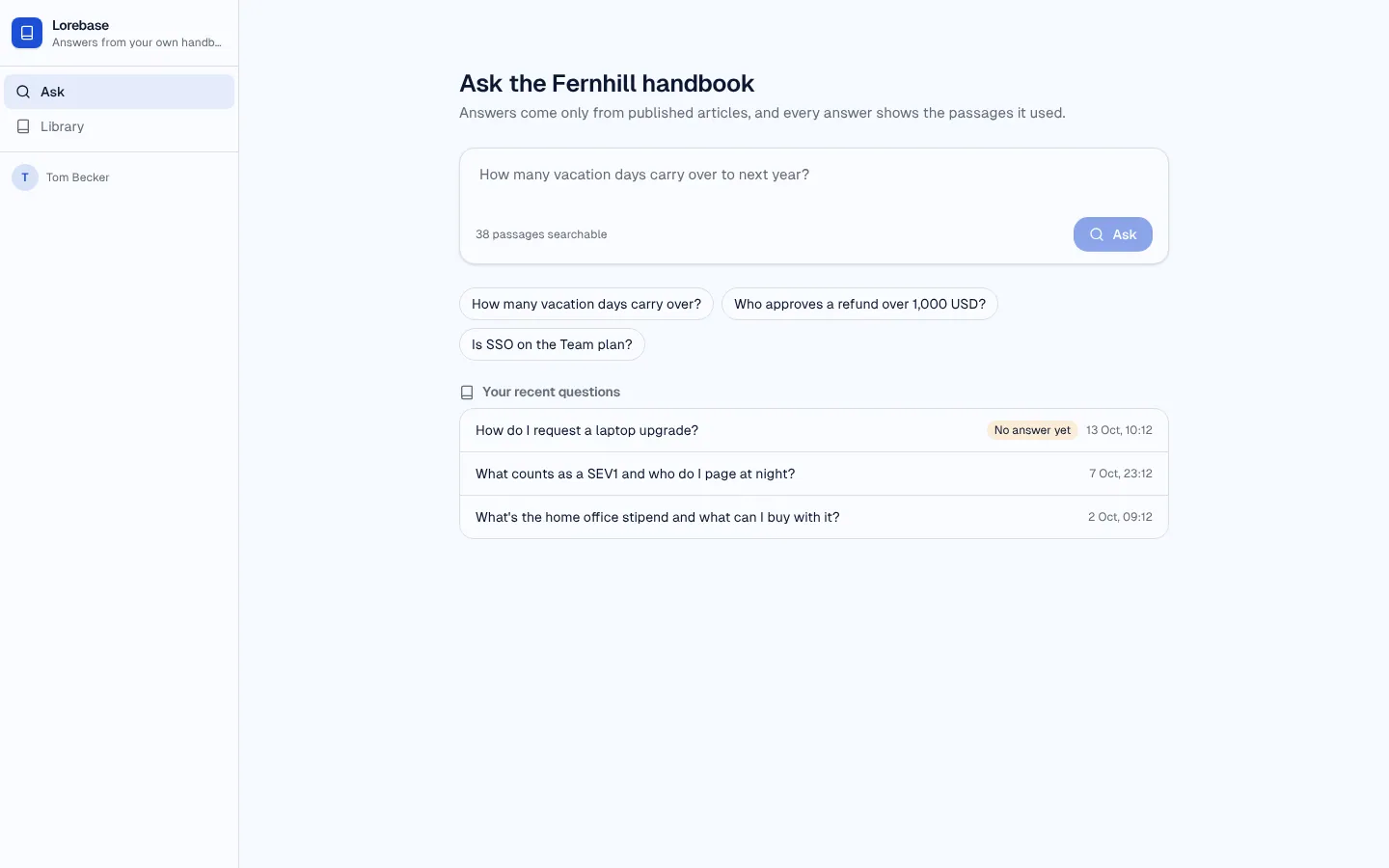
Lorebase
RAG knowledge-base assistant: ask your handbook, get an answer that cites its passages, rate it, and close the gaps.
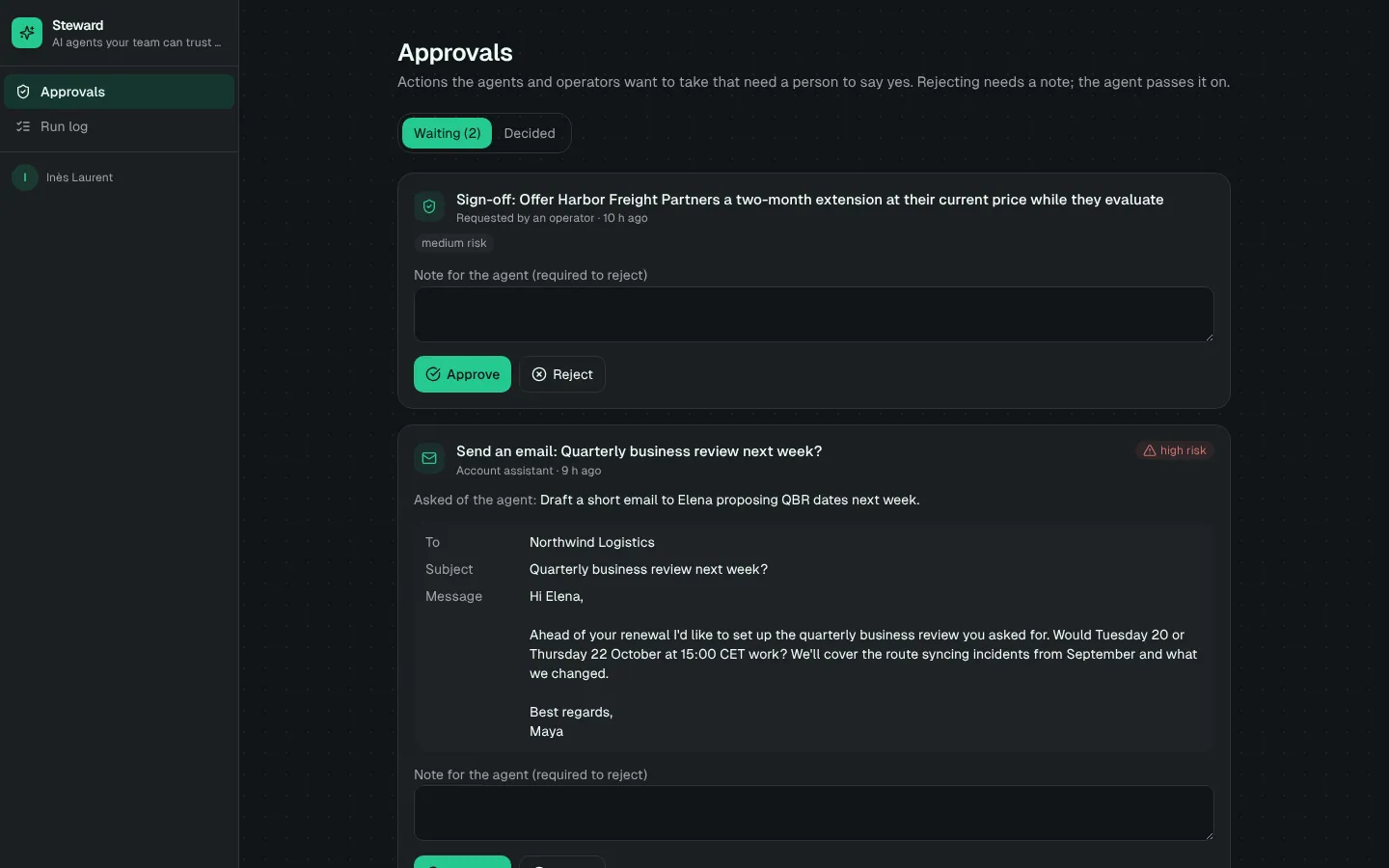
Steward
Custom AI agent with tools, memory, a step-by-step run log and human approval before sensitive actions.
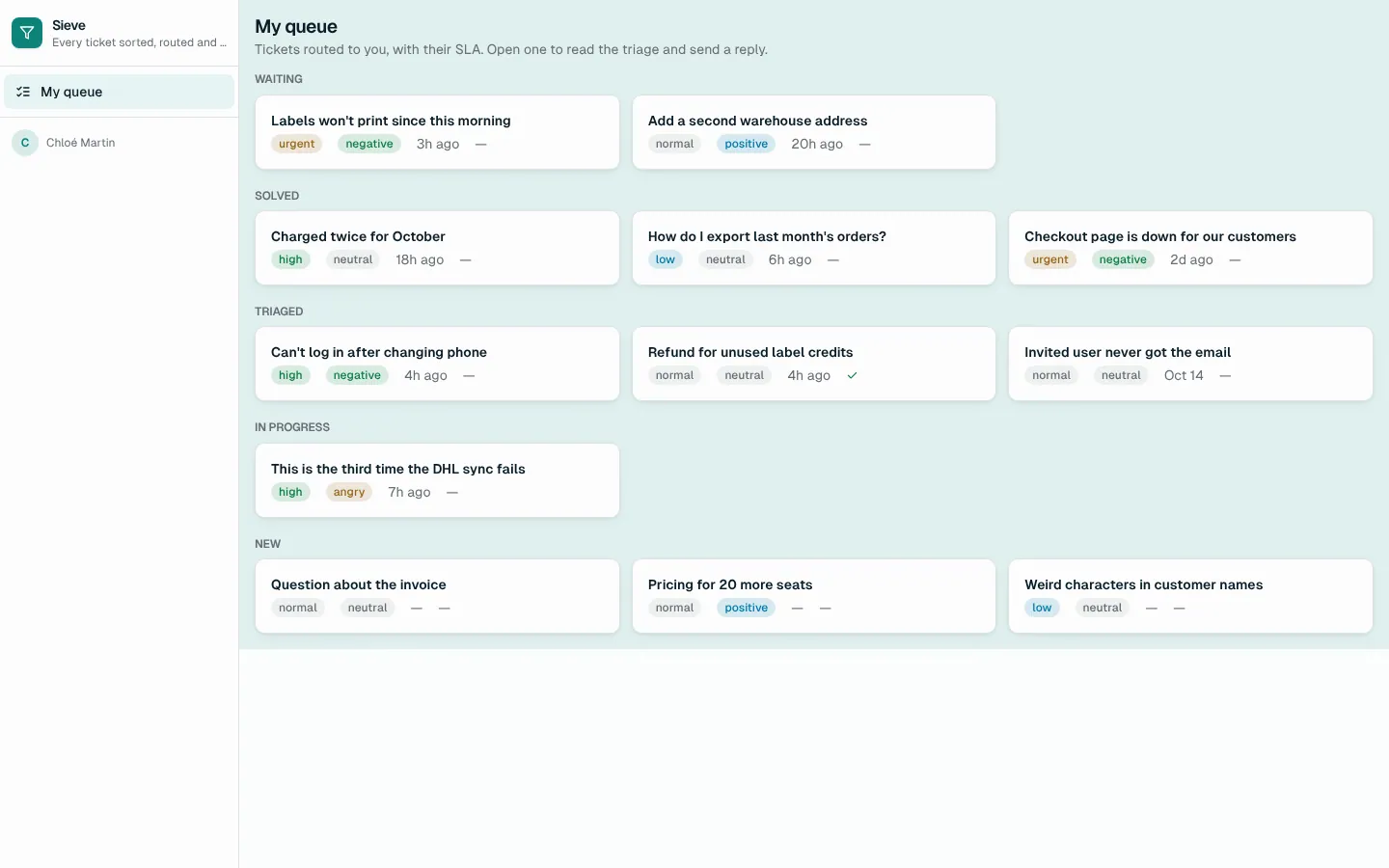
Sieve
Support triage agent: AI classifies every ticket with a confidence, routes it by your rules, drafts the reply; leads review the unsure ones.