SaaS starter (Stripe)
The base of a subscription SaaS: a landing page with live pricing, self-serve sign-up, workspaces with owners, admins and members, email invitations, a sample Projects feature whose limits follow the plan, and billing on Stripe. Owners upgrade on Stripe Checkout and manage cards, plan switches and cancellation in Stripe's customer portal; Stripe's signed webhook is the only thing that marks a plan active, records invoices, flags failed payments and drops a cancelled workspace back to Free. Admins see revenue, customers, invoices and every billing event. Works with Stripe test keys.
Members sign up from the landing page and work in workspaces (owner, admin, member). Admins run the business.
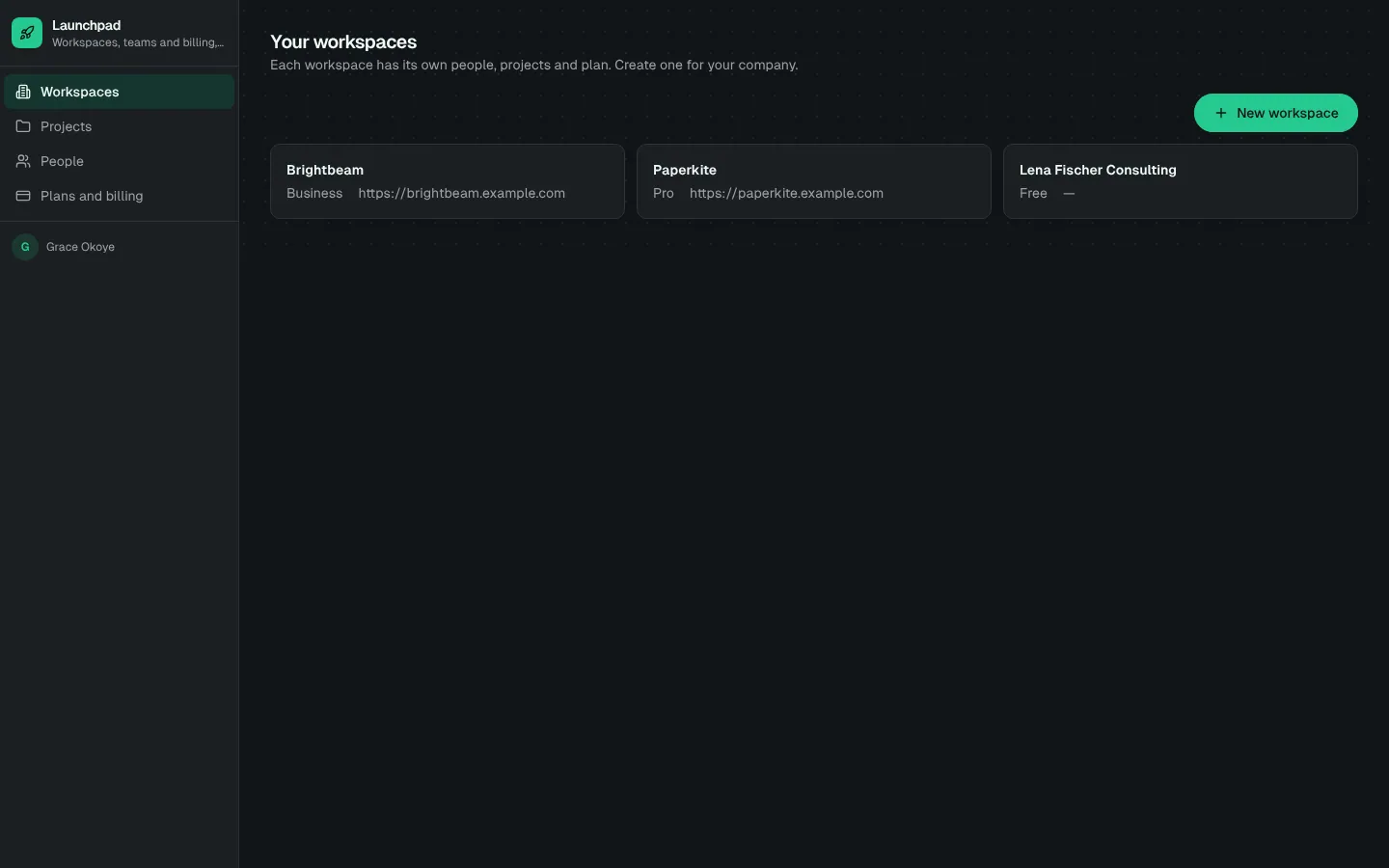
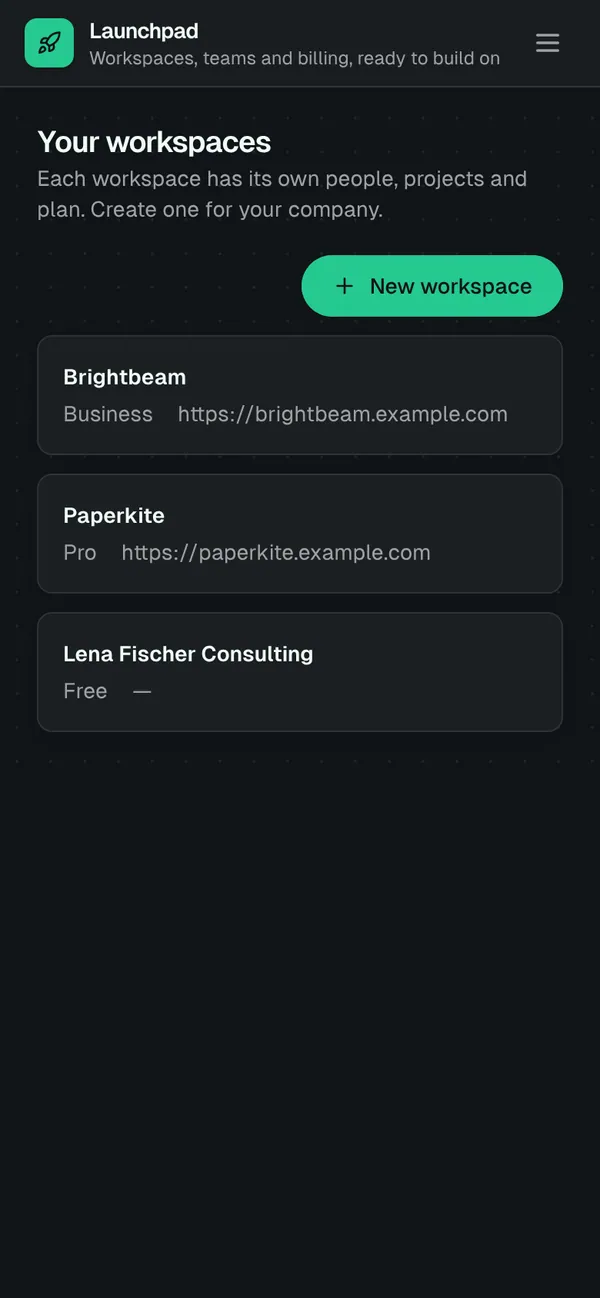
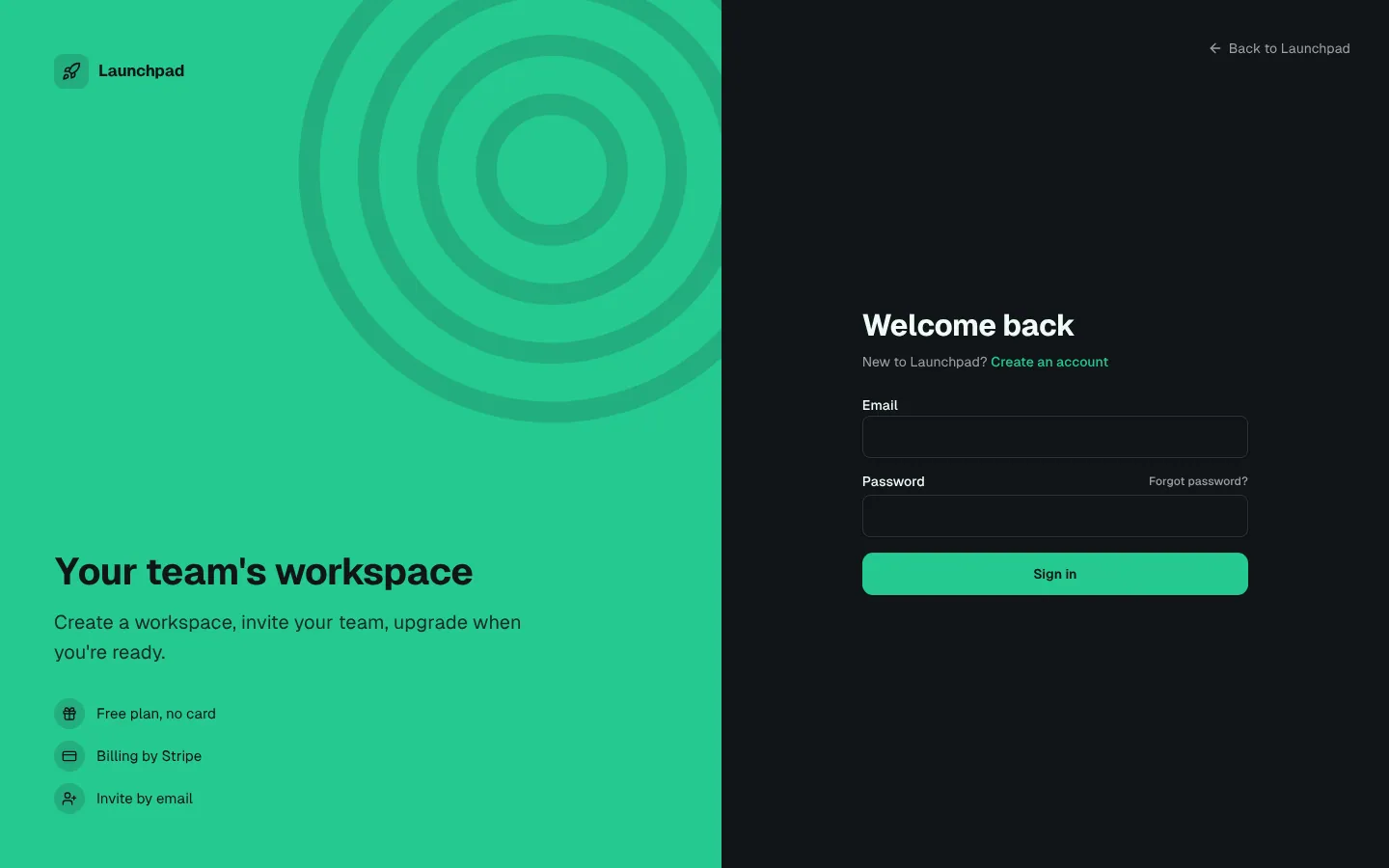
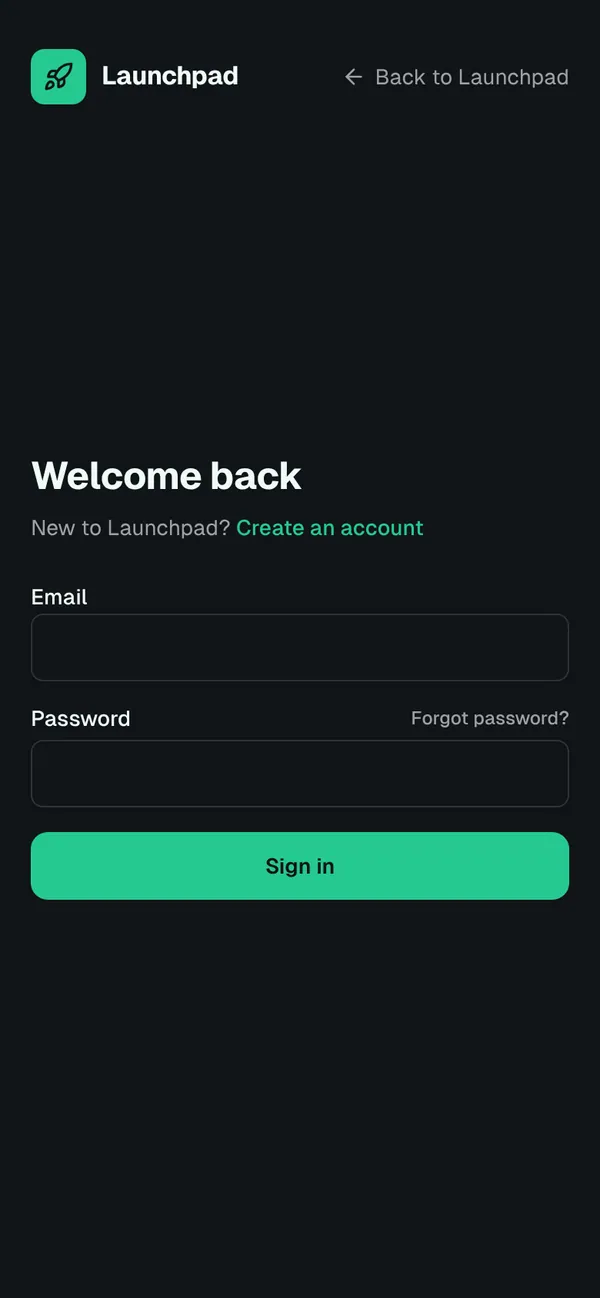
What's inside
Landing page with live pricing from the plan table. Workspaces with owners, admins and members; invitations by email. Projects as the sample feature, limited by the workspace's plan. Plans and billing page: upgrade on Stripe Checkout, manage in Stripe's portal. Admin: revenue, plans, customers, accounts, invoices and the billing event log.
Tables
membername, email, job_title, avataradminname, emailworkspacename, owner_id, plan_id, website, stripe_customer_idmembershipworkspace_id, member_id, role, status, member_name, member_emailinvitationworkspace_id, email, role, status, invited_byplanname, description, price, currency, interval, stripe_price_id, project_limit, seat_limit, …subscriptionworkspace_id, plan_id, status, sync, current_period_end, cancel_at_period_end, stripe_session_id, stripe_subscription_id, …invoiceworkspace_id, subscription_id, number, amount, currency, status, hosted_url, period_start, …projectworkspace_id, name, description, status, due_onbilling_eventtype, summary, workspace_id, event_id, received_at
Roles
memberMember, consumeradminAdmin, staff
Pages
/Home/workspacesWorkspaces (member)/workspaces/:idWorkspace (member)/projectsProjects (member)/peoplePeople (member)/billingPlans and billing (member)/revenueRevenue (admin)/plansPlans (admin)/all-workspacesCustomers (admin)/accountsAccounts (admin)/invoicesInvoices (admin)/billing-eventsBilling events (admin)- and 2 more
Components
WorkspaceBillingPlans for the workspace you administer, its subscription, upgrade and manage billing
Rules on every write
workspaceThe plan changes through billingmembershipThe owner stays the ownerinvitationNo seats leftsubscriptionA paid plan starts pending until Stripe confirms it.subscriptionOnly Stripe changes a subscription.projectYour plan's project limit is reached
How its workflows run
Each one is a server workflow in your project: it runs on its trigger, with retries, and its runs show in the builder's log.
- Set up a new workspace
When a row changes:
workspace created. Then: Look up member, then Update workspace, then Create membership. - Add or invite a teammate
When a row changes:
invitation created. Then: Look up workspace, then Update membership, then Create membership, then Send email. - Accept invitations when someone signs up
When a row changes:
member created. Then: Look up invitation, then Create membership, then Update invitation. - Show names on workspace memberships
When a row changes:
membership created. Then: Look up member, then Update membership. - Start a Stripe Checkout for a workspace plan
When the app calls it:
server function (member). Then: Look up member, then Call api.stripe.com, then Create subscription. - Apply Stripe's billing events
When a webhook arrives:
webhook stripe-billing-events. Then: Look up subscription, then Update subscription, then Look up subscription, then Update subscription, then Create subscription, then Look up subscription, then Update invoice, then Create invoice, then Send email. - Open Stripe's billing settings for a workspace
When the app calls it:
server function (member). Then: Look up subscription, then Call api.stripe.com. - Check a subscription with Stripe (fallback)
When the app calls it:
server function (member, admin). Then: Look up subscription, then Call api.stripe.com, then Update subscription. - Apply what Stripe said about a subscription
When a row changes:
subscription updated, when sync is requested. Then: Update subscription, then Look up subscription. - Weekly billing summary for admins
On a schedule:
schedule weekly mon 08:00 over invoice. Then: Send email.
Set it up
It starts a new project, with its data, roles and sign-in ready.
- Start the project
Use the button above, or ask your coding agent with the Appbricx MCP server connected (quickstart).
- Connect what it calls
add the STRIPE_SECRET_KEY secret (project settings); add the STRIPE_WEBHOOK_SECRET secret (project settings). A Stripe account (test mode is fine) with a recurring price per paid plan; paste each price_... id into the plan. A Stripe webhook endpoint at the URL get_contract lists for stripe-billing-events, with its signing secret in STRIPE_WEBHOOK_SECRET. Stripe's customer portal turned on (Settings, Billing, Customer portal).
- Sign in as each role
The demo logins open each role's home. Change what you like in plain words or in the contract.
- Deploy
When dev looks right, deploy. Production gets a snapshot first, so you can roll back.
Use it with your coding agent
The agent creates the project, builds it and signs in as each role.
Start a new Appbricx project from the SaaS starter (Stripe) template (slug "saas-starter-stripe") with use_template. Call it "My SaaS starter (Stripe)", then sign in as each role, verify it and tell me what to change first.{
"tool": "use_template",
"arguments": {
"slug": "saas-starter-stripe",
"name": "My SaaS starter (Stripe)"
}
}appbricx templates use saas-starter-stripe --name "My SaaS starter (Stripe)"Works with
The services this template calls. Each page lists every action and what connecting it takes.
Goes well with
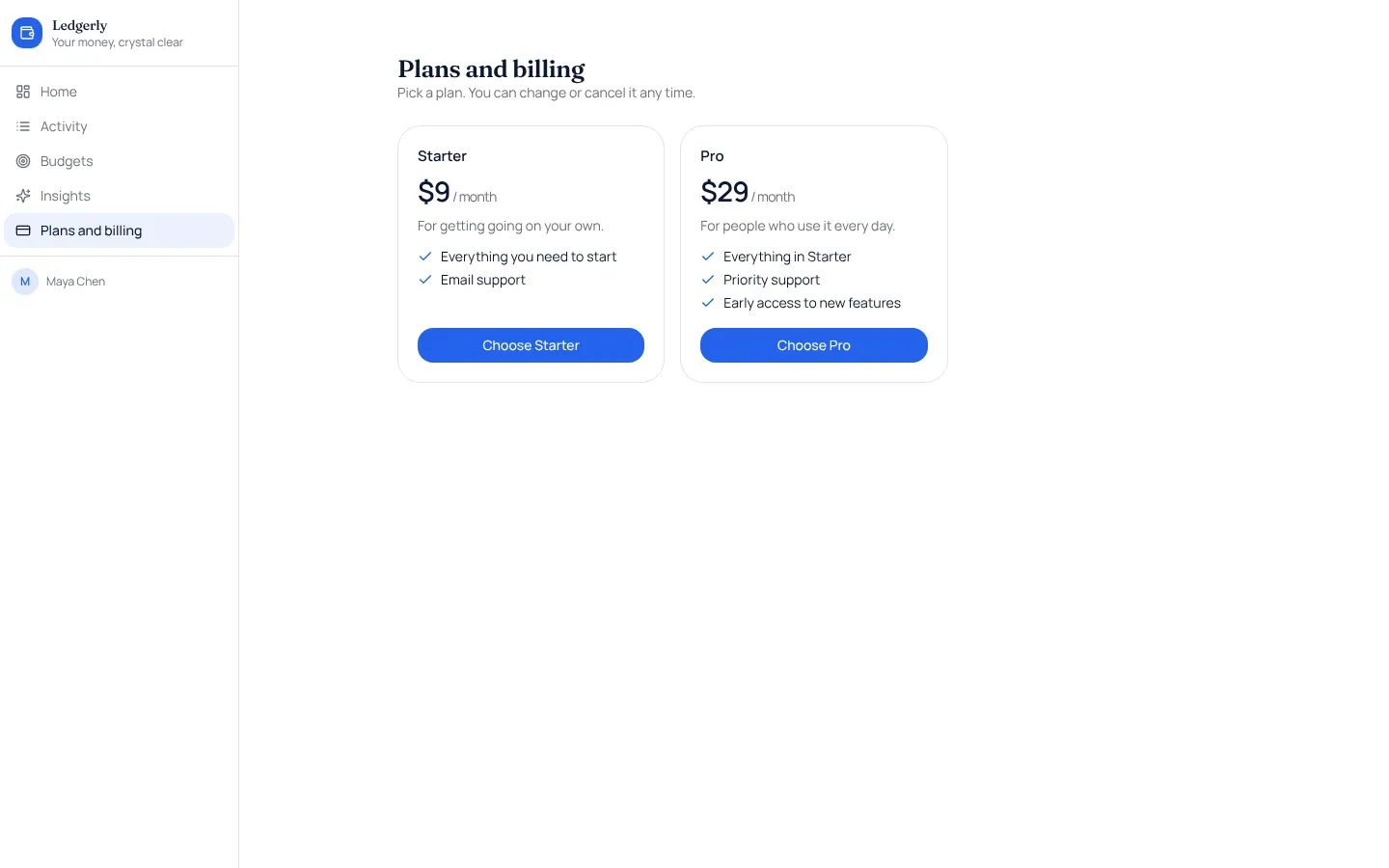
Stripe subscriptions
Monthly or yearly plans paid through Stripe Checkout, with a billing page and Stripe's own billing settings.
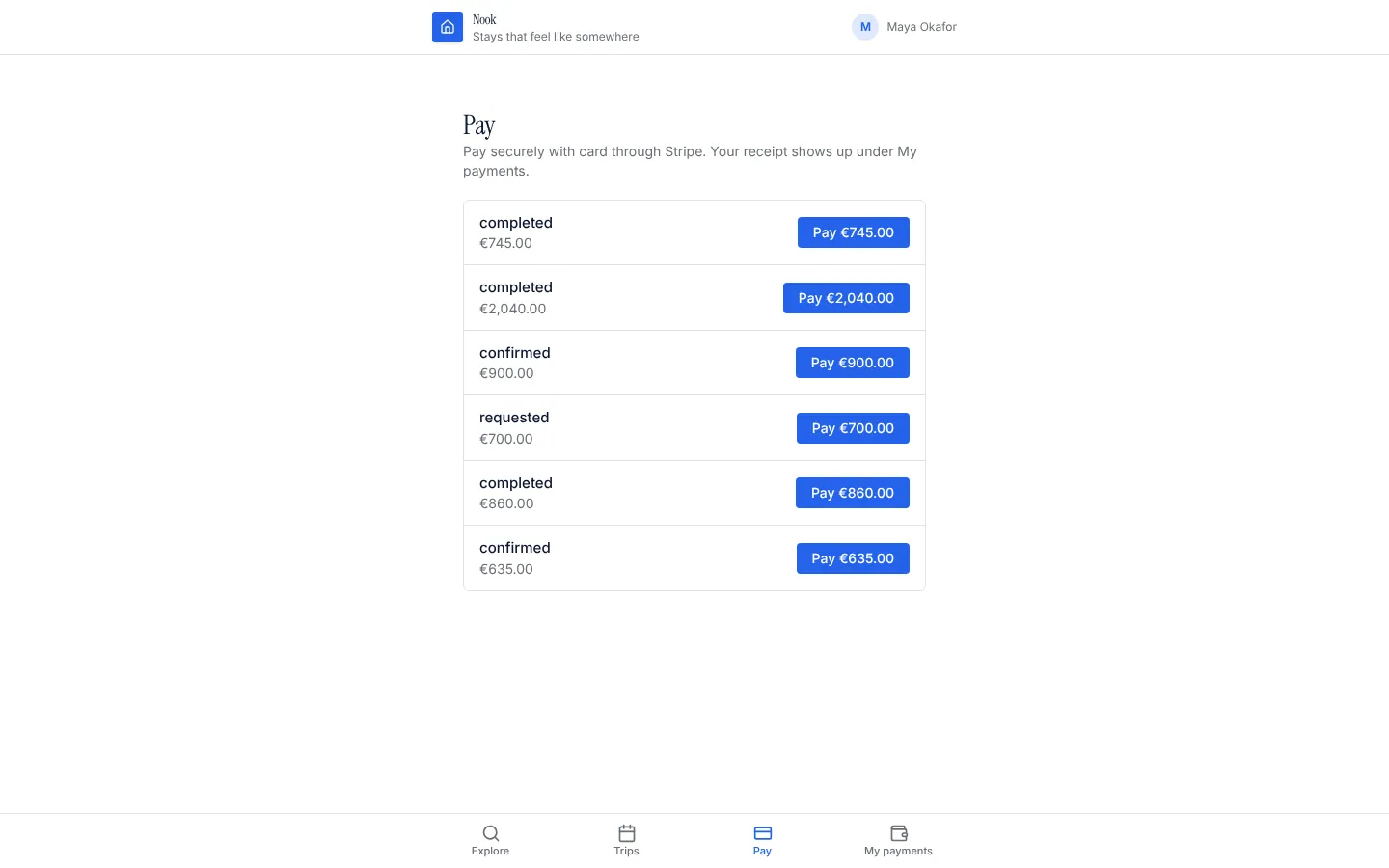
One-off payments
Take a card payment for any record (a booking, an order, an invoice) through Stripe Checkout, confirmed by the server.
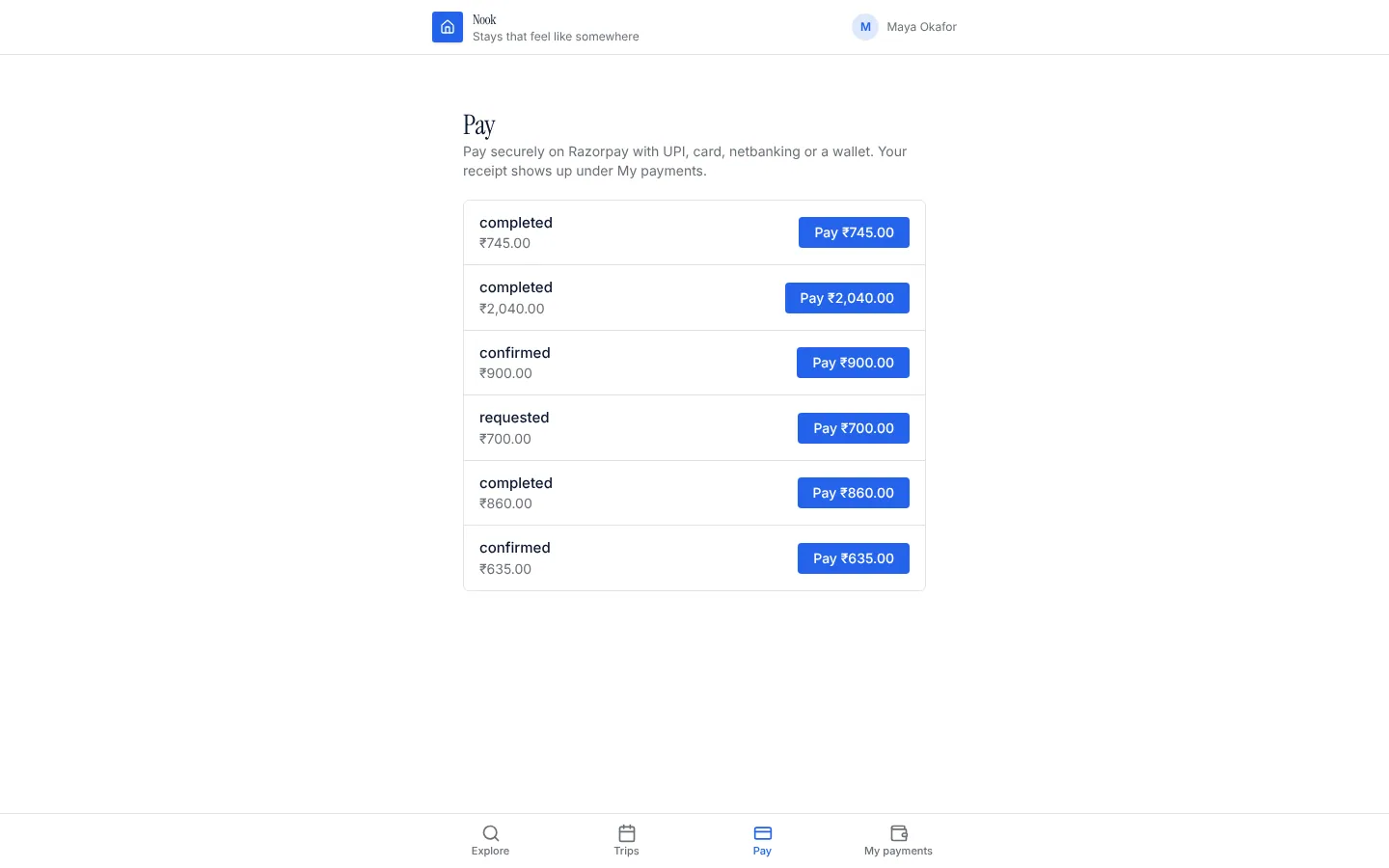
Razorpay payments
Take a payment in INR for any record (a booking, an order, an invoice) through a Razorpay Payment Link: UPI, cards, netbanking and wallets, confirmed by Razorpay's signed webhook.