Trend chart
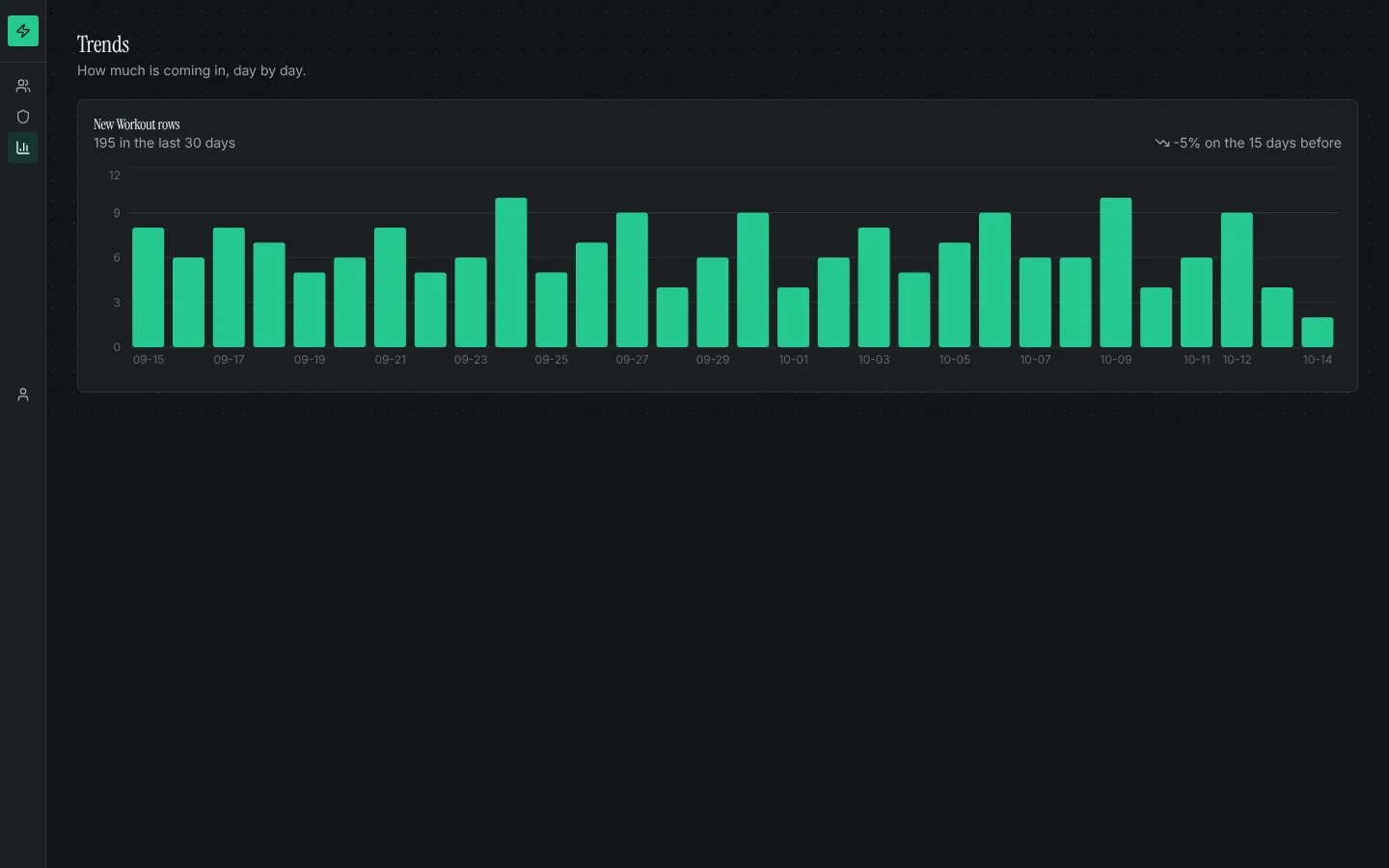
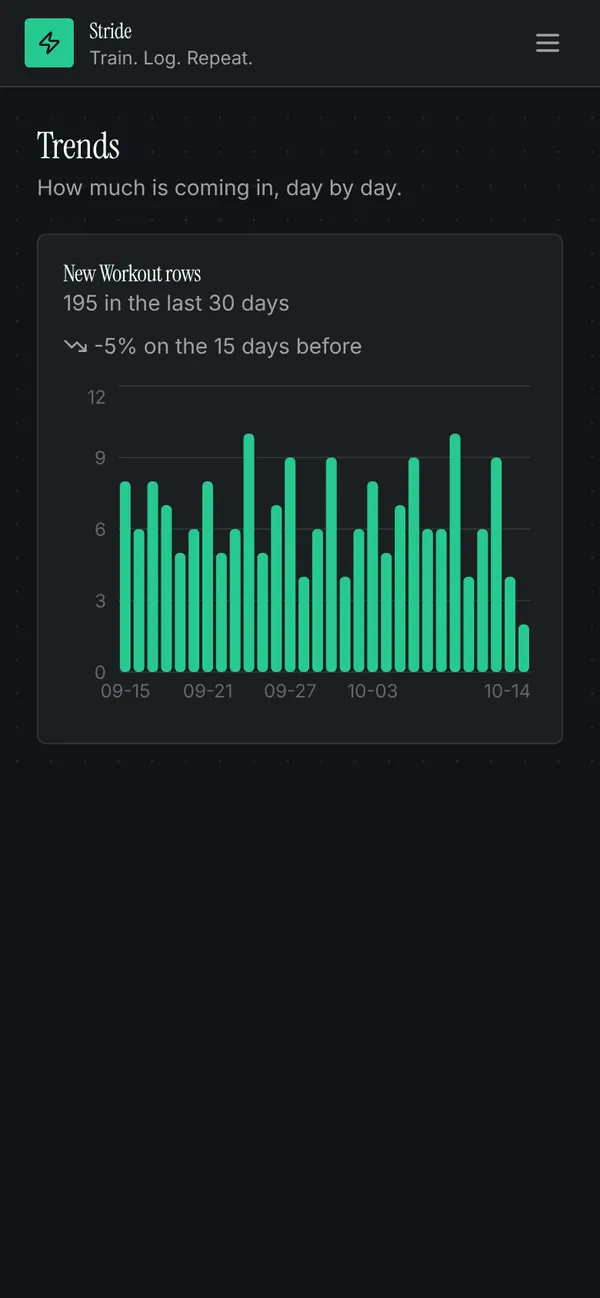
A custom component you can drop on any page: it counts the rows of one table per day over the last 7 to 90 days and draws them as bars in your app's colours, with the percentage change between the first and second half of the window. The template adds it with a Trends page for the role you choose; place it on other pages with a custom node.
What it adds to your app
Component TrendChart (props: title, entity, dateField, days). A Trends page.
Pages
/trendsTrends (‹page_role›)
Components
TrendChartA bar chart of how many rows of a table were added each day, with the change against the period before
Set it up
It merges into the contract of an app you already have. Nothing is overwritten: a name you already use is refused until you pass a prefix.
- Pick the project
Use the button above, or ask your coding agent with the Appbricx MCP server connected (quickstart).
- Point it at your tables and roles
Leave out the ones with defaults; a wrong one is refused with the options your app has.
Param What it is Example entityThe table whose new rows the chart counts. orderpage_roleThe role the Trends page is for. Optional. staff - Preview, then apply to dev
A dry run shows the diff and the check report; applying it changes your dev environment only.
- Deploy
When dev looks right, deploy. Production gets a snapshot first, so you can roll back.
Use it with your coding agent
The agent reads the template, runs a dry run, shows you the diff and applies it.
Add the Trend chart template (slug "trend-chart") to my Appbricx project. Read it with get_template, run use_template with dry_run first and show me the diff, then apply it. Ask me where it attaches if you can't tell from my contract (entity: table to chart; page_role: who sees the trends page).{
"tool": "use_template",
"arguments": {
"slug": "trend-chart",
"project_id": "<your project id>",
"params": {
"entity": "order",
"page_role": "staff"
},
"dry_run": true
}
}appbricx templates use trend-chart --param entity=order --param page_role=staff --dry-runGoes well with
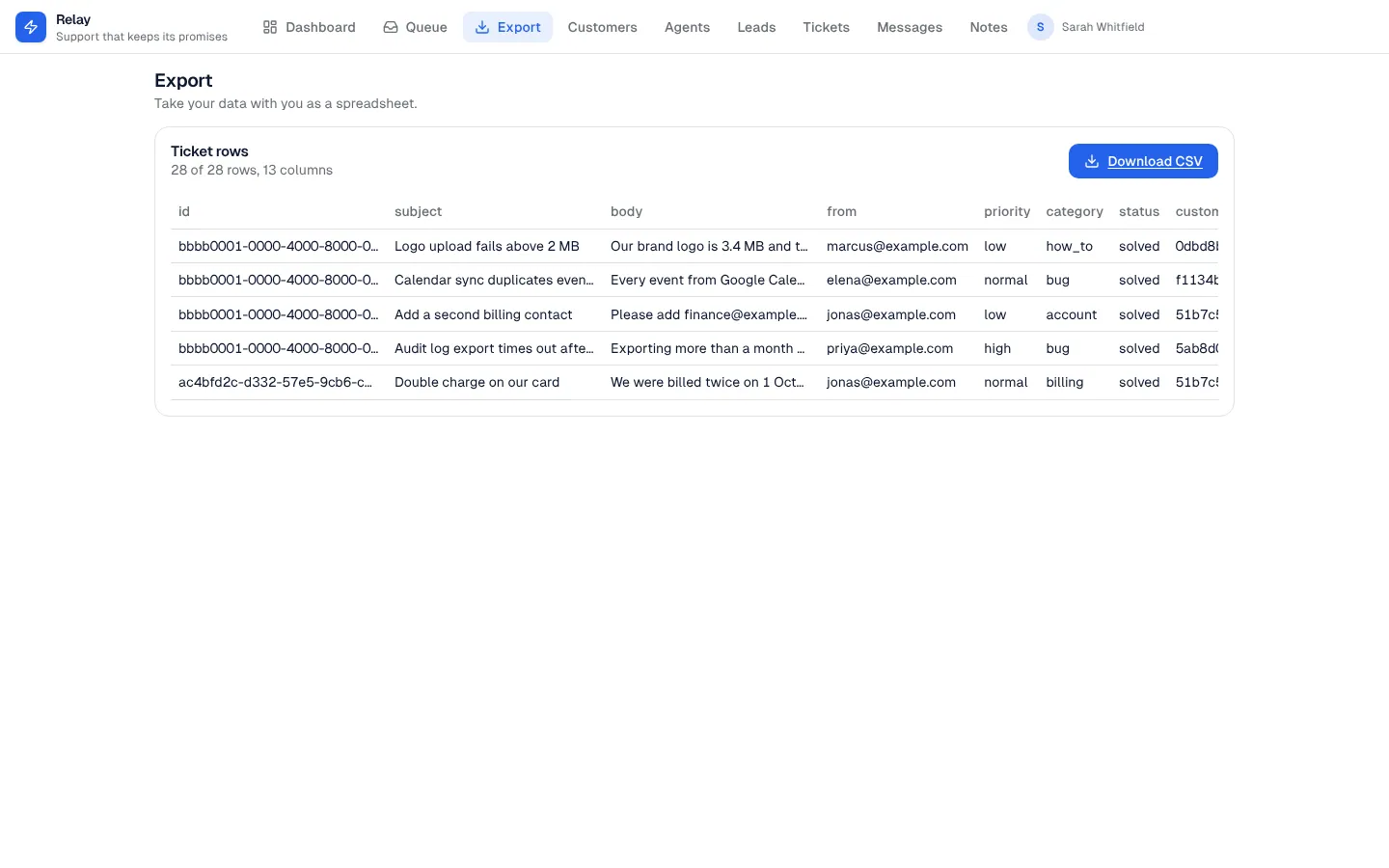
CSV export
A Download CSV button for any table, with a preview of the first rows.
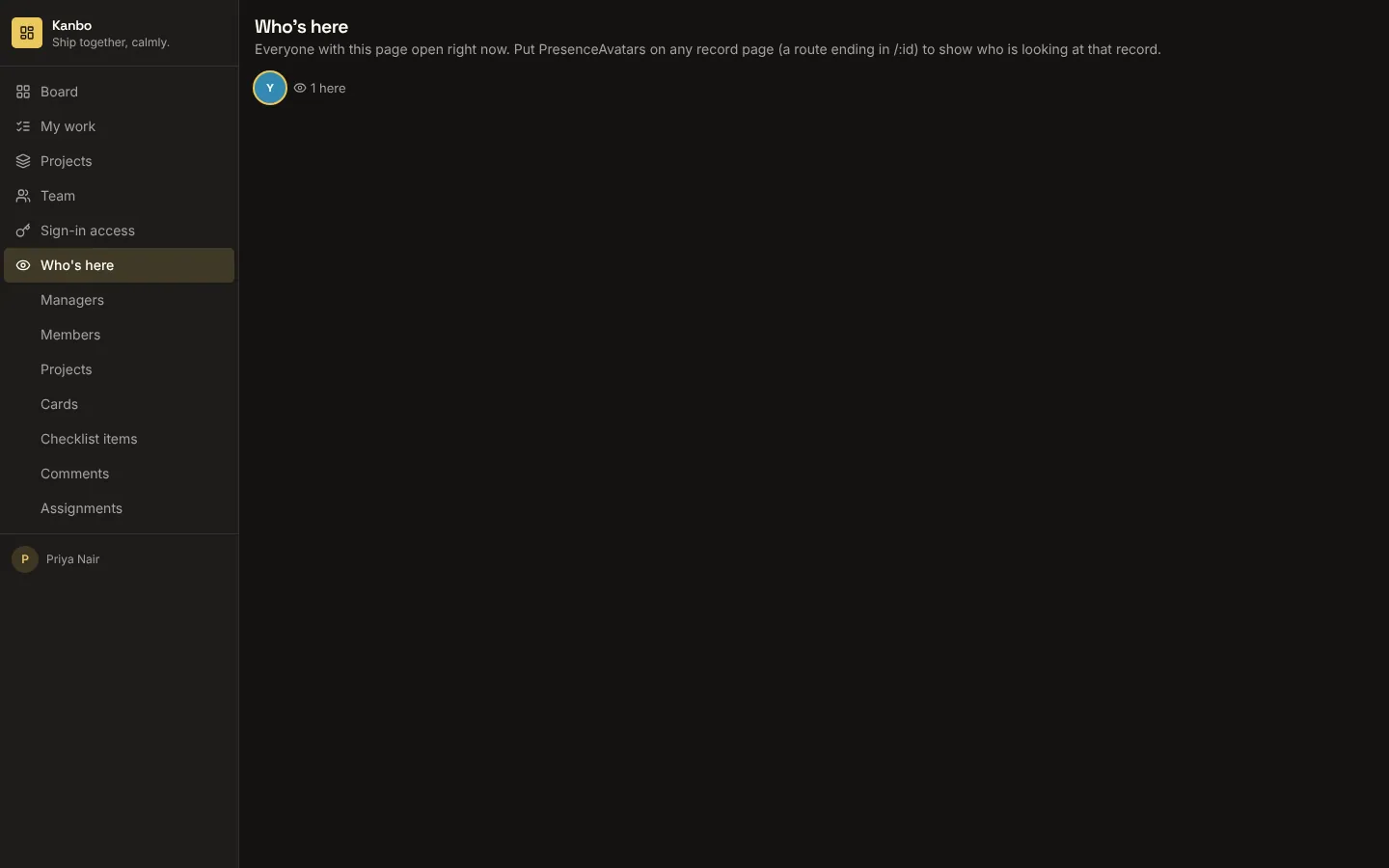
Presence avatars
Faces of the people looking at a record or a page right now, updating as they arrive and leave.
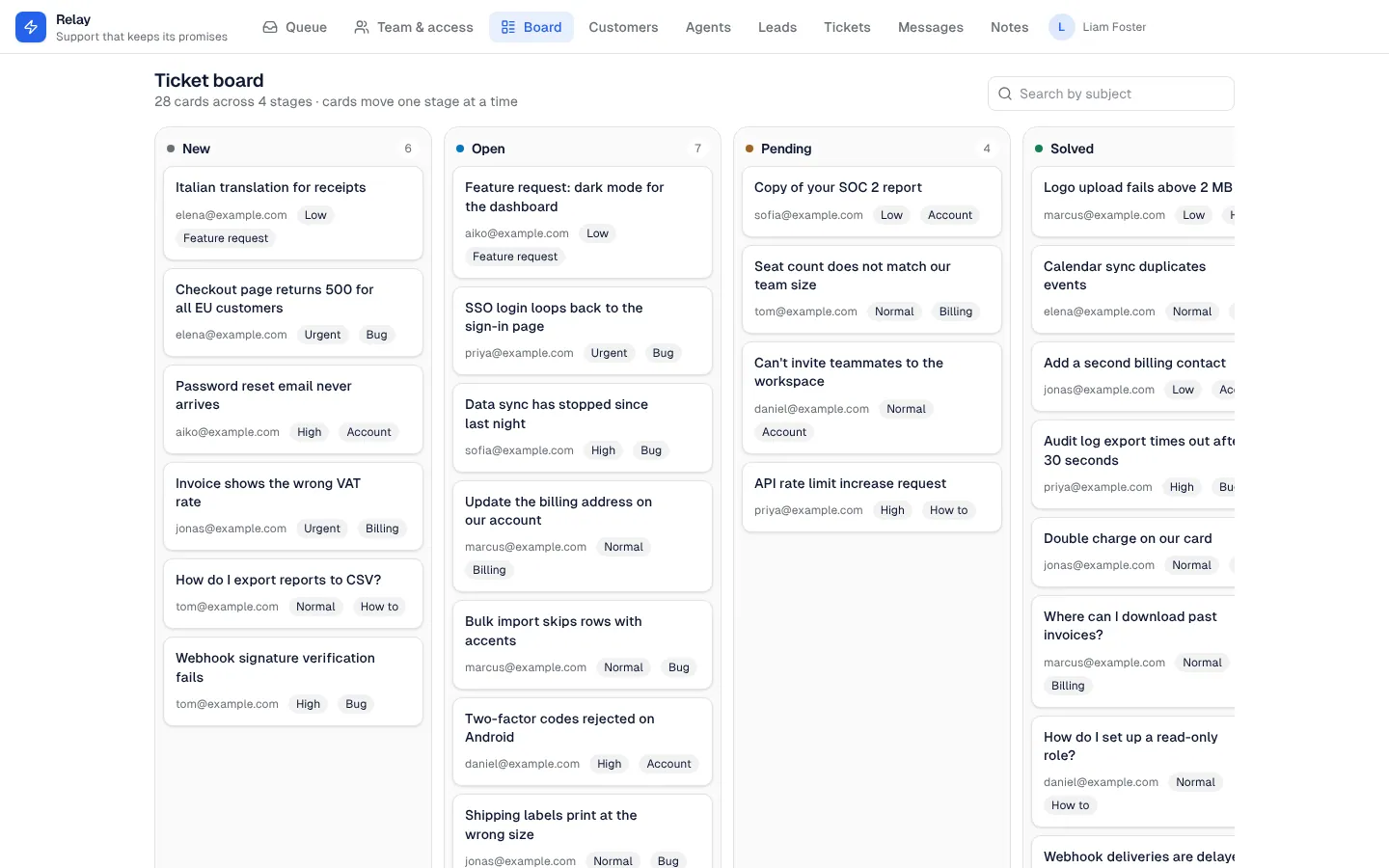
Kanban board
A drag-and-drop board over any table with a status field: a lane per status, quick add, search, and a card sheet to edit in place.