Calendar
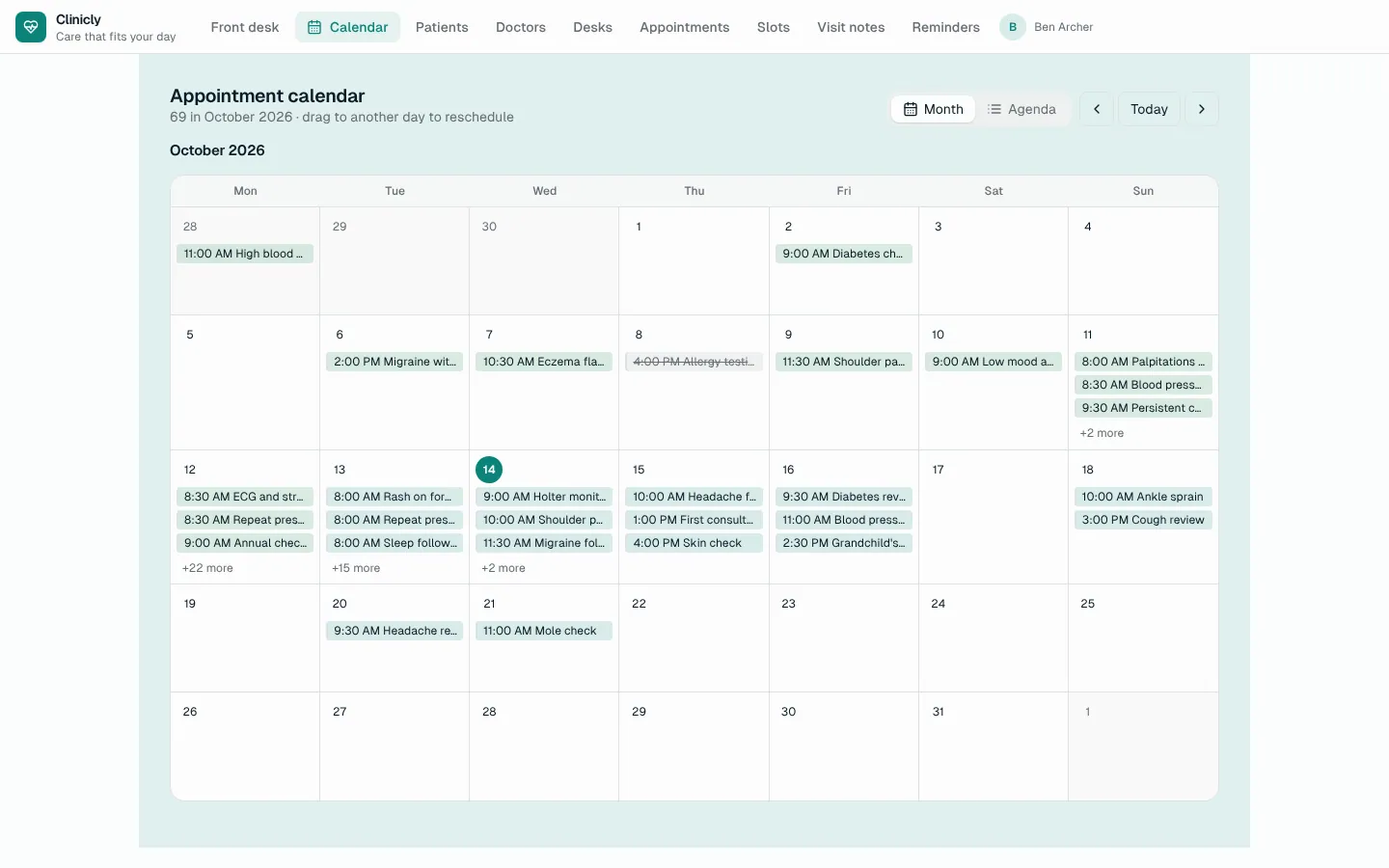
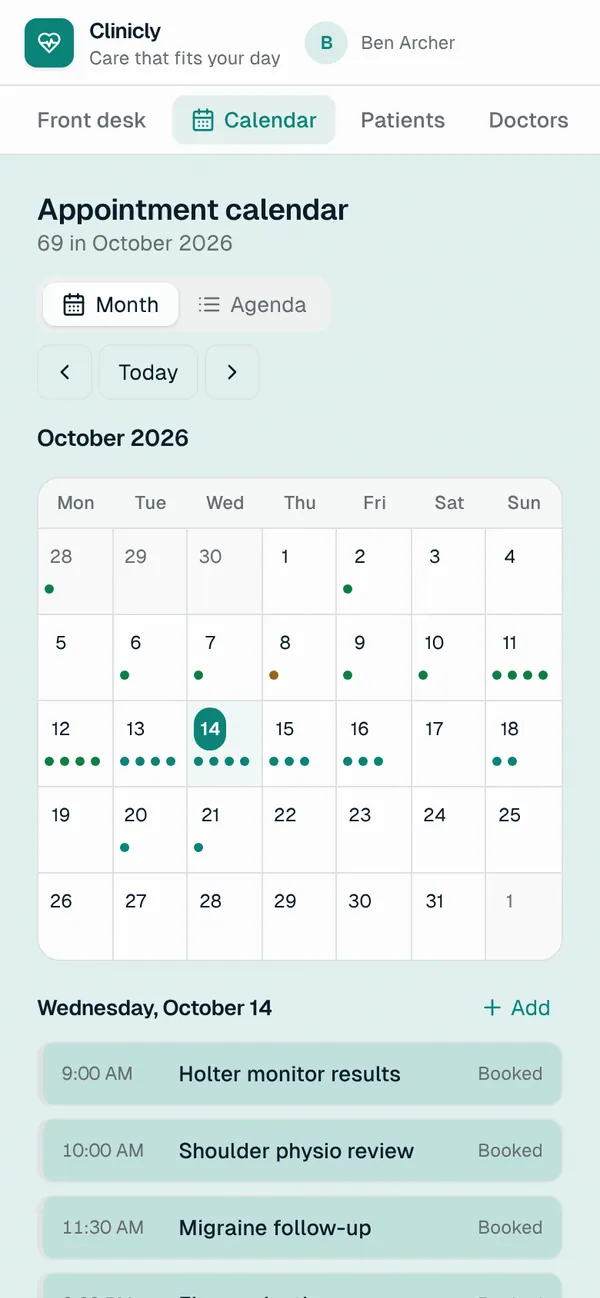
A custom component that puts the rows of one of your tables on a calendar by one of their date or date-and-time fields: appointments, shifts, deadlines, posts, deliveries. Switch between a month grid and an agenda, step through months, and colour entries by a choice field such as status or kind. Drag an entry to another day to reschedule it (its time and length are kept), add one on any day with the table's required fields, and open an entry to edit its fields or move its status on. On a phone the month shows dots and the chosen day's list underneath. It reads only the visible month from the server, and only the rows the signed-in person may see.
What it adds to your app
Component EntityCalendar (props: entity, dateField, endField, titleField, colorField, fields, detailRoute). A Calendar page for the role you choose.
Pages
/calendarCalendar (‹page_role›)
Components
EntityCalendarA month calendar and agenda of ‹entity› by ‹date_field›: colour by a choice field, drag to another day to reschedule, add on a day, open a row to edit it
Set it up
It merges into the contract of an app you already have. Nothing is overwritten: a name you already use is refused until you pass a prefix.
- Pick the project
Use the button above, or ask your coding agent with the Appbricx MCP server connected (quickstart).
- Point it at your tables and roles
Leave out the ones with defaults; a wrong one is refused with the options your app has.
Param What it is Example entityThe table whose rows go on the calendar. appointmentdate_fieldThe date (or date and time) that places a row on the calendar. Optional. starts_atend_fieldOptional: when the row ends; it moves with the start when you reschedule. Optional. ends_atcolor_fieldOptional: a choice field that colours the entries, such as status or kind. Optional. statuspage_roleThe role the Calendar page is for. Optional. staff - Preview, then apply to dev
A dry run shows the diff and the check report; applying it changes your dev environment only.
- Deploy
When dev looks right, deploy. Production gets a snapshot first, so you can roll back.
Use it with your coding agent
The agent reads the template, runs a dry run, shows you the diff and applies it.
Add the Calendar template (slug "calendar") to my Appbricx project. Read it with get_template, run use_template with dry_run first and show me the diff, then apply it. Ask me where it attaches if you can't tell from my contract (entity: table on the calendar; date_field: date field; end_field: end field (optional); color_field: colour by (optional); page_role: who sees the calendar).{
"tool": "use_template",
"arguments": {
"slug": "calendar",
"project_id": "<your project id>",
"params": {
"entity": "appointment",
"date_field": "starts_at",
"end_field": "ends_at",
"color_field": "status",
"page_role": "staff"
},
"dry_run": true
}
}appbricx templates use calendar --param entity=appointment --param date_field=starts_at --param end_field=ends_at --param color_field=status --param page_role=staff --dry-runGoes well with
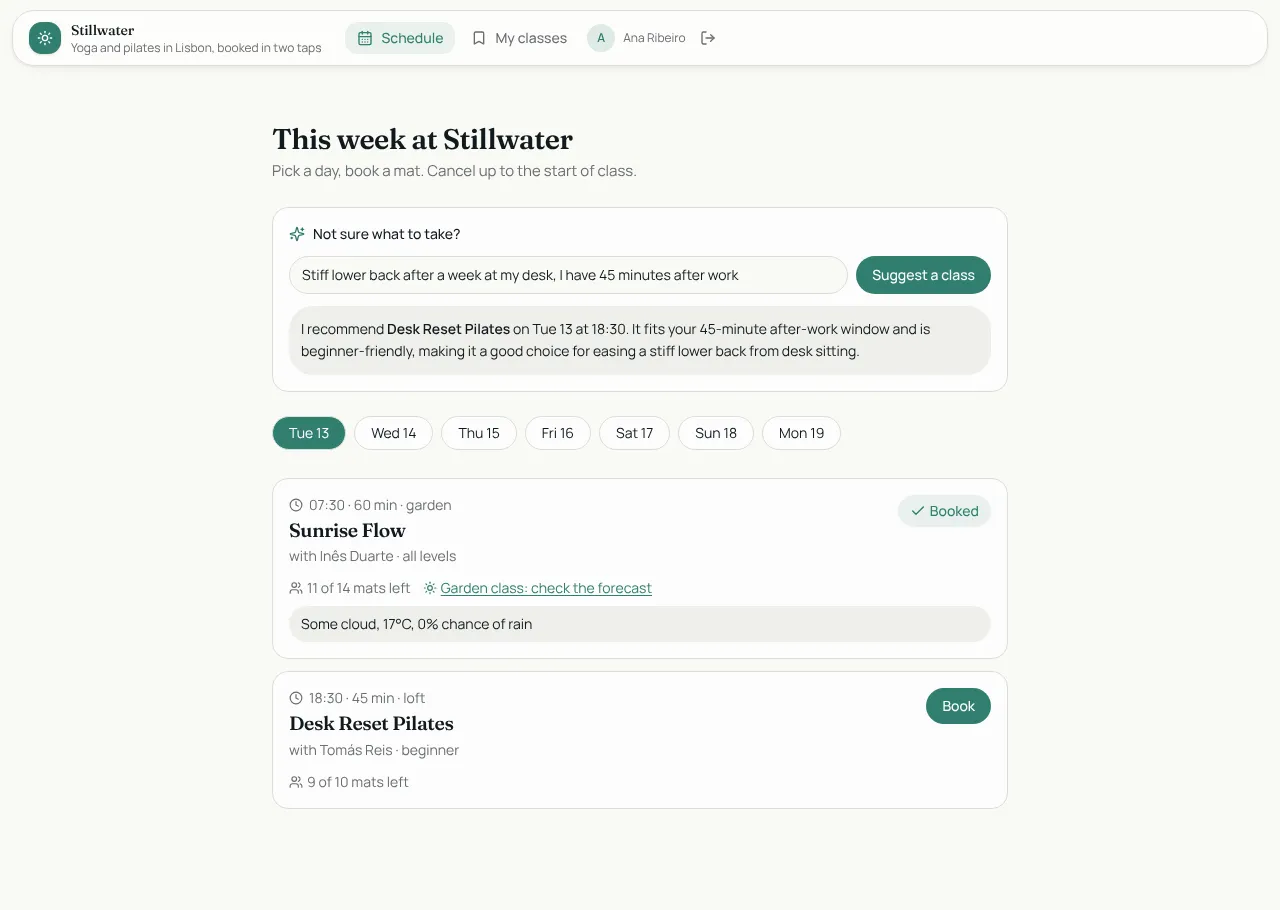
Studio Bookings
Class booking for a yoga and pilates studio: members book in two taps, instructors run the schedule.
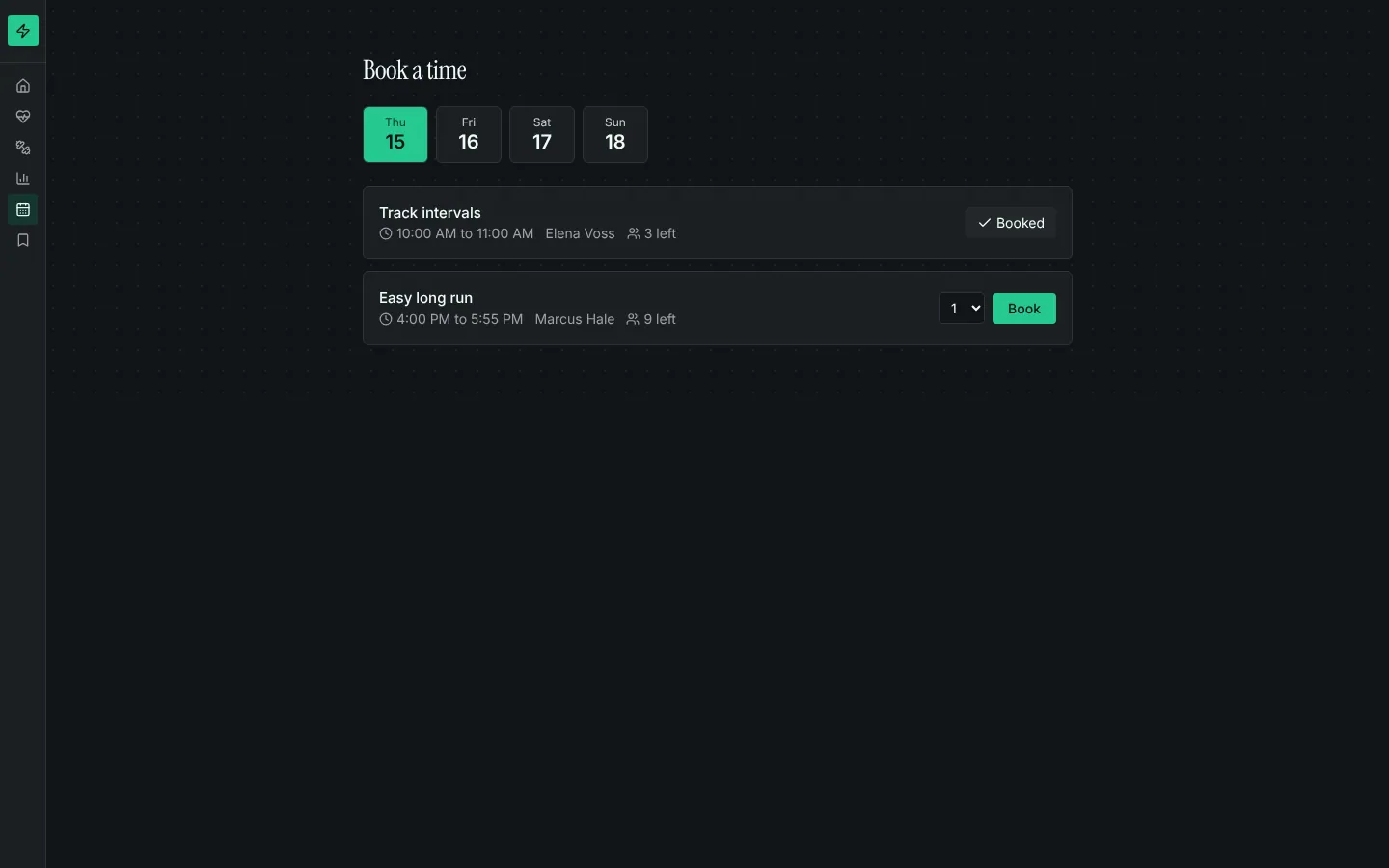
Booking calendar
Bookable time slots with capacity, a day picker, my bookings with cancel, and rules that stop double-booking.
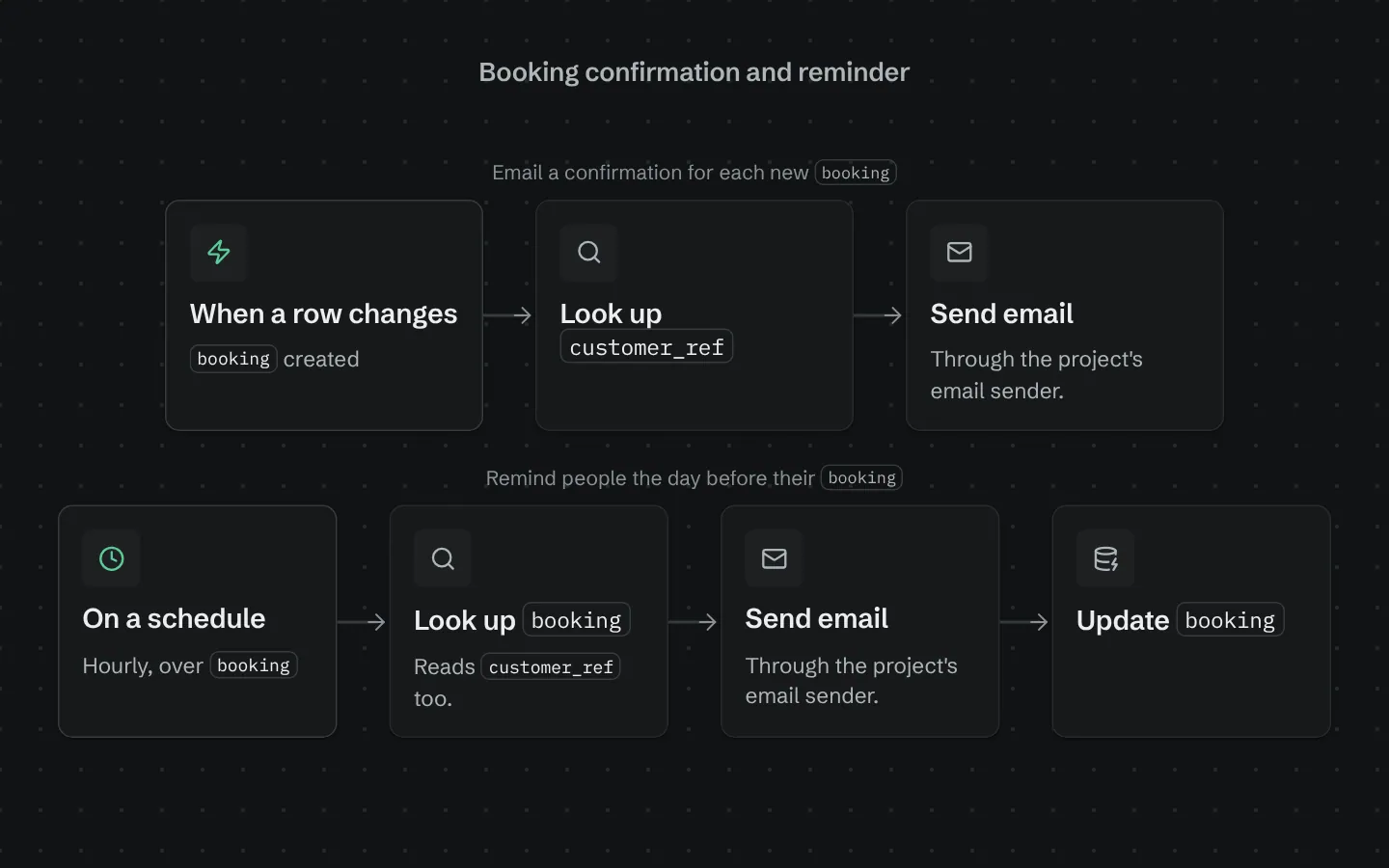
Booking confirmation and reminder
Emails a confirmation when a booking is made and a reminder the day before it starts.